
How to Quote a Customer Order
- Go to Quote History.
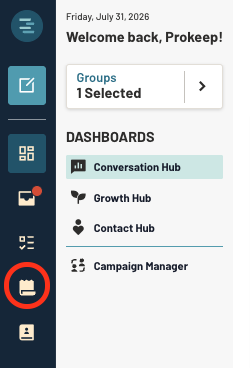
- Select Create New Quote, or select Reuse Quote to start from a previous order.
.png?width=670&height=327&name=create%20quotereuse%20quote%20(2).png)
- Build the quote:
.png?width=670&height=341&name=Quote%20Details%20(3).png)
- Contact/Company information — a Company is required. If a company is already assigned to the contact, it populates automatically; otherwise, add one.
- PO Number
- Fulfillment Options
- Required Date
- Fulfillment Instructions
- Internal Notes (optional, visible only to your team)
- Click Save.
.png?width=670&height=230&name=save%20(4).png)
- Review each Line Item, Quantity, and Line Price.
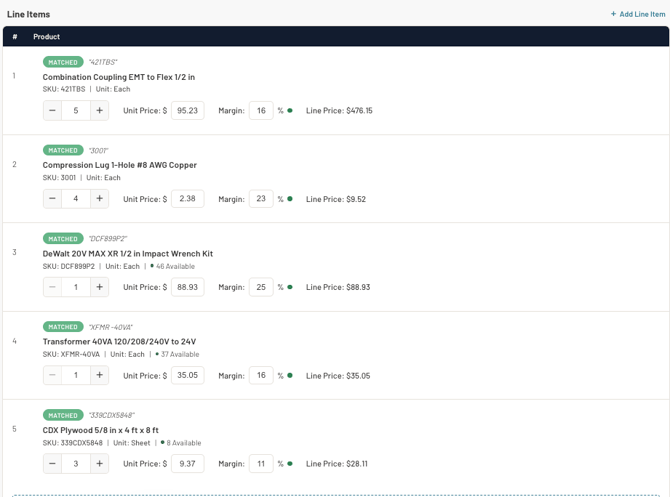
- Click Convert to Order once the quote is correct.
.png?width=383&height=159&name=convert%20(6).png)
Note: If you receive an error stating the company has no external ID associated, reach out to your IT/ERP System Administrator for assistance updating the company.
- Always add a contact and company to every record — it keeps OA matching accurate going forward.
- Reuse past quotes to save time on repeat orders.