
How to Quote a Customer Order
- Claim the thread.
- Click View Quote.
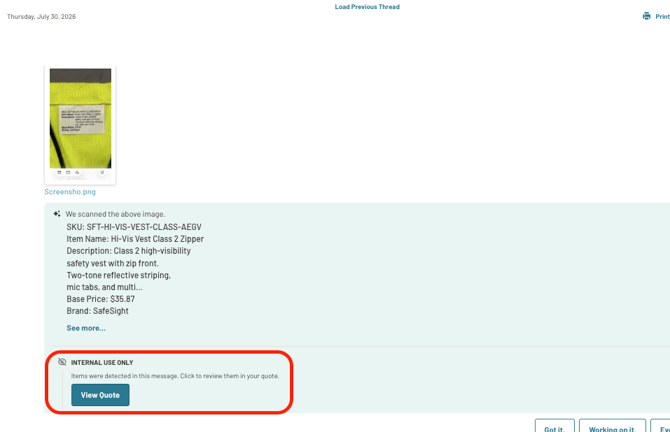
- Confirm the quote details:

- Contact/Company information — Company is required. If a company is already assigned to the contact, it populates automatically; otherwise, add one.
- PO Number
- Fulfillment Options
- Required Date
- Fulfillment Instructions
- Internal Notes (optional, visible only to your team)
- Review the quote: Add, Delete, or change the Quantity as needed.
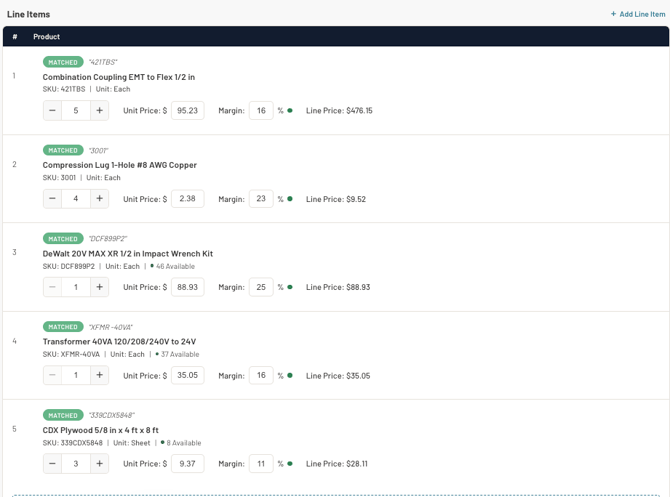
- Review the Line Price.

- Click Send to Contact if a quote is needed. This moves the quote status to Pending. The customer can review the quote and request changes if needed. Once they approve it, the status moves to Confirmed. OR Click Convert to Order once the quote is correct.
.png?width=383&height=159&name=convert%20(6).png)
- Close the thread once complete.
Note: If you receive an error stating the company has no external ID associated, reach out to your IT/ERP System Administrator for assistance updating the company.
- Claim the thread as soon as you start working on it.
- Always add a contact and company to every record — it keeps OA matching accurate going forward.
- Always close the thread once the order is complete.